Initializing Globus Access
You do not need a Globus account to start this process. Your Globus account will be created automatically when you first attempt to log in.
-
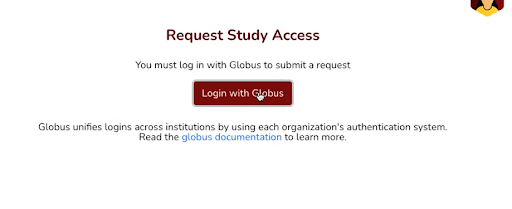
BrainSwipes will prompt you to log in with Globus
-
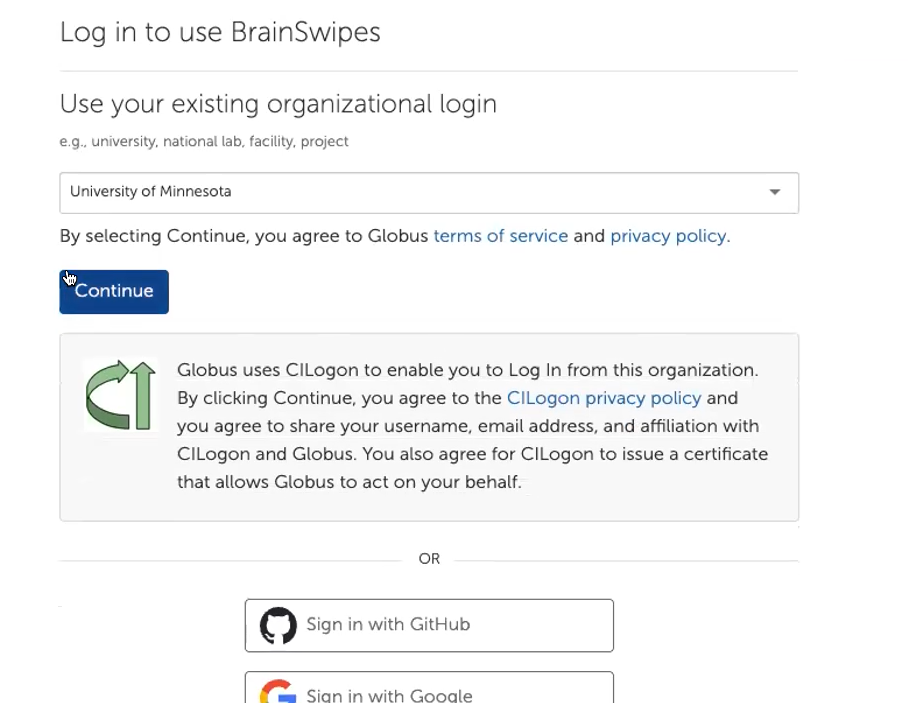
Select the organization you are registered with for the data use agreement for the study you are requesting access to.
-
You will be prompted to log in to your organization's system as if you were accessing their resources.

-
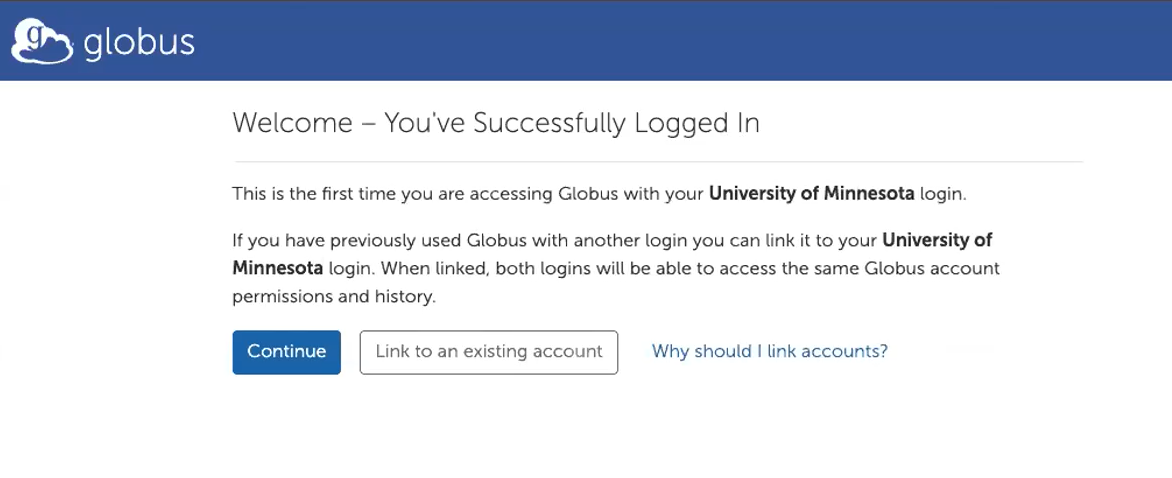
If this is the first time you have accessed Globus with this organization you will be prompted to continue with a new Globus account or link to an existing one. If you have never used Globus before, click continue. If you have accessed Globus with a different identity, click Link to an existing account.
-
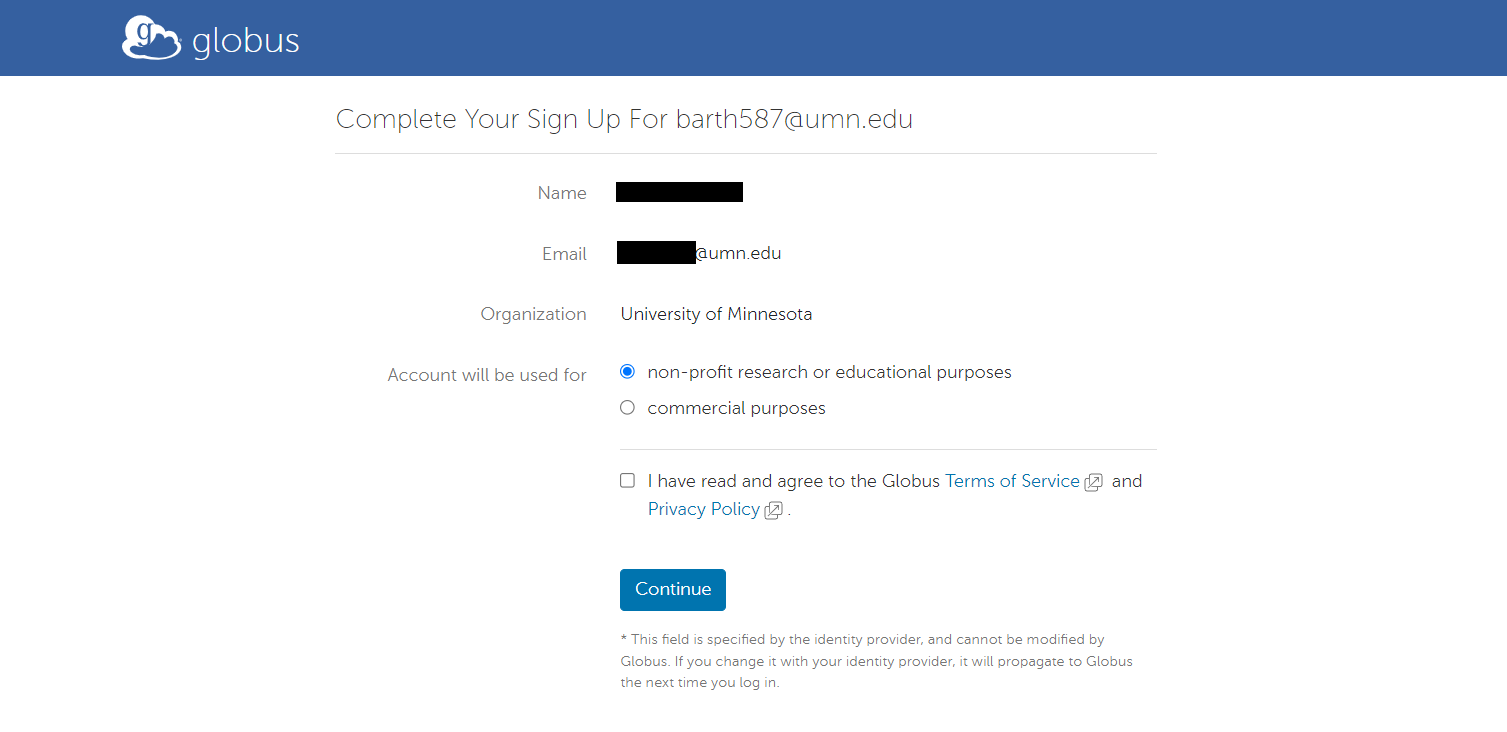
You may also be prompted to share what you will be using your globus account for. Check "non-profit research of educational purposes", accept the terms of service and continue.
-
If you clicked
Link to an existing accountin step 4 you will be asked to log into your primary identity. This will have you repeat steps 2-3 for your existing identity.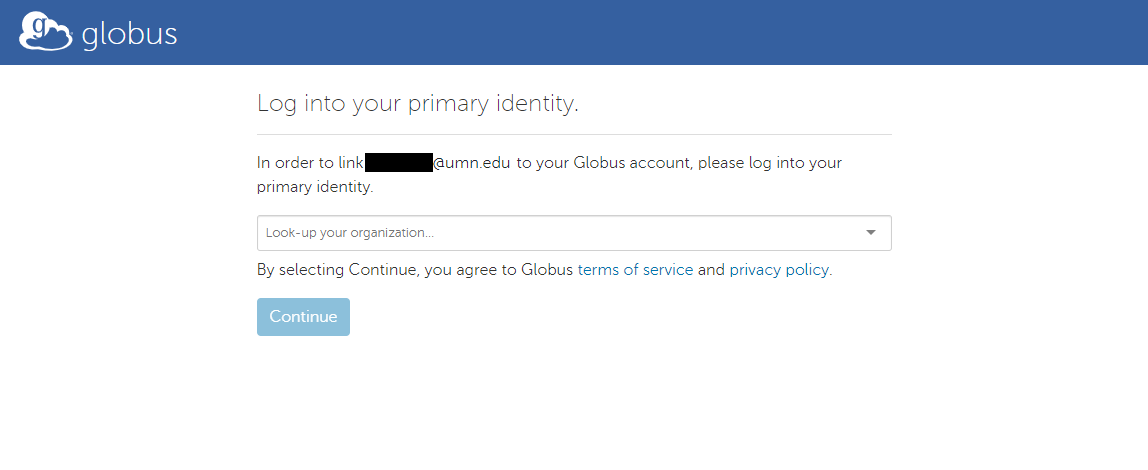
-
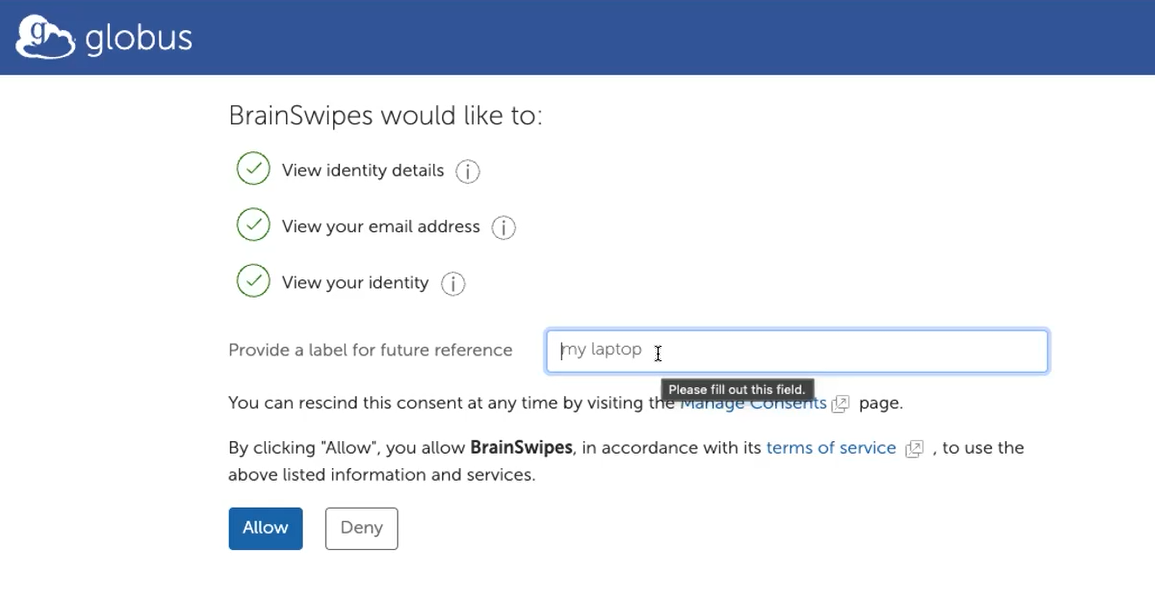
Once your account is linked, or, if you did not link an account, you will be forwarded to the Globus consent page. Add a label, the default "my laptop" is fine. Accept and continue.
-
You are now logged in to Globus. The BrainSwipes application will ask to see your identity details in the Globus interface. Provide a name for your device and click Allow.
-
If this is your first time logging in with globus you may have to log in again when you finish.